Are you a team member in a veterinary practice?
Are you a pet parent planning a trip with your furry pal?
How Clear Cookies on Every Major Browser
The clinic laptop is still signed in to the portal from the last person who sat down. A pet owner is waiting, a travel form is half done, and you need the browser to forget that session without tossing the whole computer. Learning how to clear cookies is that kind of reset. You choose it for a goal, such as fixing one site, ending one login, or handing a shared screen to the next person. It is not proof that the browser has become anonymous.
Browsers in 2026 do not treat third-party cookies the same way. A wide clear on one browser can dump a login you still need. The same clicks on another browser may change almost nothing about cross-site ads. Match the clear to the job in front of you.
What Changes When Cookies Go
Say the front desk shares one laptop, and the last staff member is still signed in to the clinic portal. Cookies are small site files. They can remember a login, a language, or a consent choice so the site does not ask every time.
The change shows up as soon as those files are gone. Many sites sign the person out. Saved site preferences can vanish with them. Bookmarks, saved passwords, and downloads usually stay, because those live in other browser stores. You are not deleting a Google account, wiping all history, or erasing every kind of stored site data. What changes depends on the data categories you select.

The Google sign-in catch
Google's account help says deleting cookies may sign people out of sites that remember them and may remove saved site preferences. It also notes a Chrome detail that trips people up. If cookies are deleted while someone is still signed in to Chrome, Chrome can refresh the Google cookies that keep that sign-in alive. When those Google cookies must go, sign out of Chrome first, then clear.
Practical rule: Sign out of the account you mean to end before you clear, or the browser may quietly put that sign-in back.
Two moments, three goals
A pet owner can lose a half-finished travel form because the site kept the draft in a cookie or related site data. That person has to start the answers again. A vet tech who only needed one old portal session forgotten has a smaller job. One site's data is enough. There is no need to chase every cookie like a runaway puppy.
Sort the next step by goal.
Fix one site: Remove only that site's stored data, then reload and retest.
End one login: Sign out, then clear that site so the next person sees a fresh prompt.
Reset a shared browser: Use a short time range first. Save All time for a problem that shows up across many sites.
How to Clear Cookies on Each Browser
Find your row, then follow the same five steps. The menus differ. The idea does not. Leave history, cache, and passwords unchecked unless a later problem tells you otherwise.
Browser and device | Where to open | What to select | Time range note |
|---|---|---|---|
Chrome on computer | Privacy and security, then Delete browsing data | Cookies and other site data only | Last hour up to All time; site-only data is under Third-party cookies, See all site data |
Chrome on Android or iPhone | Settings, Privacy and security, Delete browsing data | Cookies and site data | Last 15 minutes through All time on mobile |
Edge on computer | Settings, Privacy, search, and services, Delete browsing data | Cookies and other site data | Choose a time range before confirming |
Firefox on computer | Settings, Privacy and Security, Cookies and Site Data | Manage Data for one site, or Clear Data for cookies and site data | Everything or a shorter period such as the last hour |
Firefox on Android | Settings, Delete browsing data | Cookies and site data | Pick the time range before delete |
Safari on Mac | Safari menu, Settings, Privacy, Manage Website Data | Remove the site or Remove All | No short time range in Manage Website Data |
Safari on iPhone | Settings, Safari, Clear History and Website Data | History and website data together | This also clears history, not cookies alone |
One path after you find the row
Open the browser's settings, or the site control named in your row.
Choose cookies and site data only. Leave history, cache, and passwords unchecked.
Pick a short range first, such as the last hour. Use All time only when the snag spans many sites.
Confirm, then close the old tab. Do not restore it, or the browser may bring the old session back with the tab.
Sign in again only on the site you still need.
Firefox has two doors
Mozilla's Firefox guide splits the job. For one site, open Settings, go to Privacy & Security, then Cookies and Site Data, and choose Manage Data. Search the site, then select Remove Selected or Remove All Shown. For a wider cleanup, open Clear Data. Set it to Everything or a shorter period such as the last hour. Select Cookies and site data. Temporary cached files and pages is a separate box, so leave it off unless pages look stale. The padlock or shield beside the address bar can clear the site you have open, which keeps unrelated sites alone.
On iPhone, Safari's Clear History and Website Data removes history along with website data. That is a bigger sweep than a Chrome clear that is limited to cookies. On Edge, and on Chrome for Android or iPhone, stay inside Delete browsing data and select the cookies and site data choice from the table.
If your goal was a simple sign-out, stop here. If Firefox is also keeping ad identifiers you did not mean to keep, remove tracking cookies from Firefox walks through that narrower cleanup from Digital Footprint Check.
When One Site Still Misbehaves
Start from the page that failed. A portal loops back to login. A form keeps an old answer. Write down the domain, and note whether the snag is sign-in, a saved preference, or a stale session. Then run a narrow test. Another full wipe usually signs more people out than it helps.
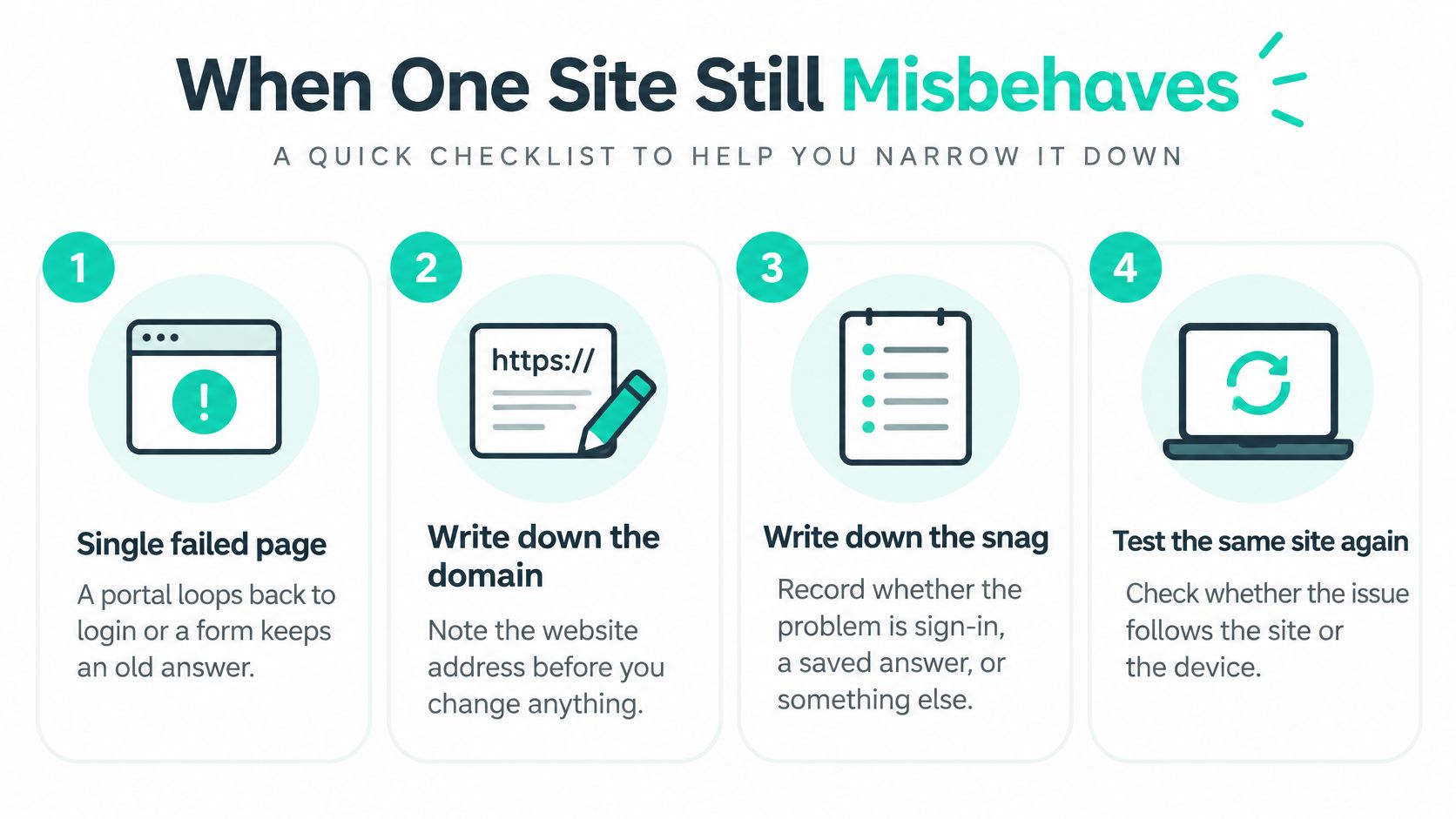
A four-step retest
Google's Chrome cookie help lays out a controlled reset. Record the domain and the kind of snag first. Then delete only that site's stored data. On the open site in Chrome, go to Privacy and security, then Third-party cookies, then See all site data and permissions. Search the domain, delete that site, reload, and retest. For a wider reset, use Delete browsing data, pick a defined time range, and enable only Cookies and other site data. Reserve All time for trouble that shows up on many sites. Mobile Chrome also offers ranges from the last 15 minutes through all time, which fits a short incident.
Delete only that site's stored data.
Reload in a fresh tab. Do not restore the old one.
Sign in again and retry the exact task that failed.
If it still fails, open a private window and try once more.
If the private window works, an extension, a saved password, or leftover site storage is more likely than a general pile of cookies. If it fails there too, cookies may not be the cause. Next checks, without a new click recipe, are cached files, a service-worker cache, a server-side session, or an account rule. Closing the browser does not always drop a session cookie, because session restore can bring it back. A stubborn cookie can cling like a burr on a dog's coat. The retest tells you whether it is still the same site.
A clinic login that keeps failing after this test is often an account issue, not a browser pile. The notes on a vet portal login are a better next read than another All time clear.
What you still see | Likely cause | Next check |
|---|---|---|
Still signed in to Google | Chrome refreshed Google cookies while you stayed signed in | Sign out of Chrome, then clear again |
Same site still broken | Site data beyond cookies, or an extension | Retest in a private window |
Old session returns after restart | Browser restored the previous session | Close the tab and do not restore it |
Consent or language choice returns | A normal new cookie after the next visit | Set the choice again on that site only |
Problem appears on many sites | A broad stale session or shared profile | Use a wider time range once, then retest |
Privacy Steps Beyond Cookie Deletion
Deleting cookies can end a login and drop saved preferences. It does not, by itself, make someone anonymous. Treat the clear as a reset of this browser's memory of a site, not a cloak.
Researchers describe cookie respawning, in which trackers recreate identifiers from other browser storage after the cookie is gone. A 2021 research paper on cookie respawning also notes older cases where a network-level identifier could re-identify someone and restore an identifier even after cookies were cleared. That gap matters for a traveler on a shared device and for a pet owner typing health details into a form.

A smaller habit than clear all
A wide wipe forces extra sign-ins and fresh consent prompts. A layered habit does more with less fuss.
Delete the site that matters: Leave the rest of the browser's logins in place.
Review site permissions: Camera, location, and notification prompts are separate from cookies.
Sign out on a shared screen: Do this before you close the window.
Block cross-site tracking where the browser already offers it: Use the control the browser shows, rather than hoping a clear removed every ad identifier.
Use a separate browser profile for sensitive work: Health forms and clinic tools do not need to share a profile with everyday browsing.
The UK Information Commissioner's Office says browsers can delete cookies, block them, allow them, block third-party cookies, or clear them when the browser closes. Third-party cookies are set by services other than the site you are visiting. Blocking them, or clearing on close, can make a map embed, a sign-in button, or a saved language ask again. Those are user controls, not a full account of every tracker.
Safari and Firefox already limit third-party cookies by default, so the same clear may change little about cross-site ads there. Chrome still leaves third-party cookie controls in the user's hands, so a Chrome clear can dump a login and still leave other tracking paths. Some of those paths are not cookies at all. Clearcote Labs on canvas tracking explains one way a site can recognize a browser from how it draws graphics. For clinic work that should stay in its own profile, the Passpaw privacy page is the place to see how account data is handled outside the browser tab.
Clearing cookies resets this browser's memory of a site. It is not a cloak.
Shared Screens and Sensitive Pet Forms
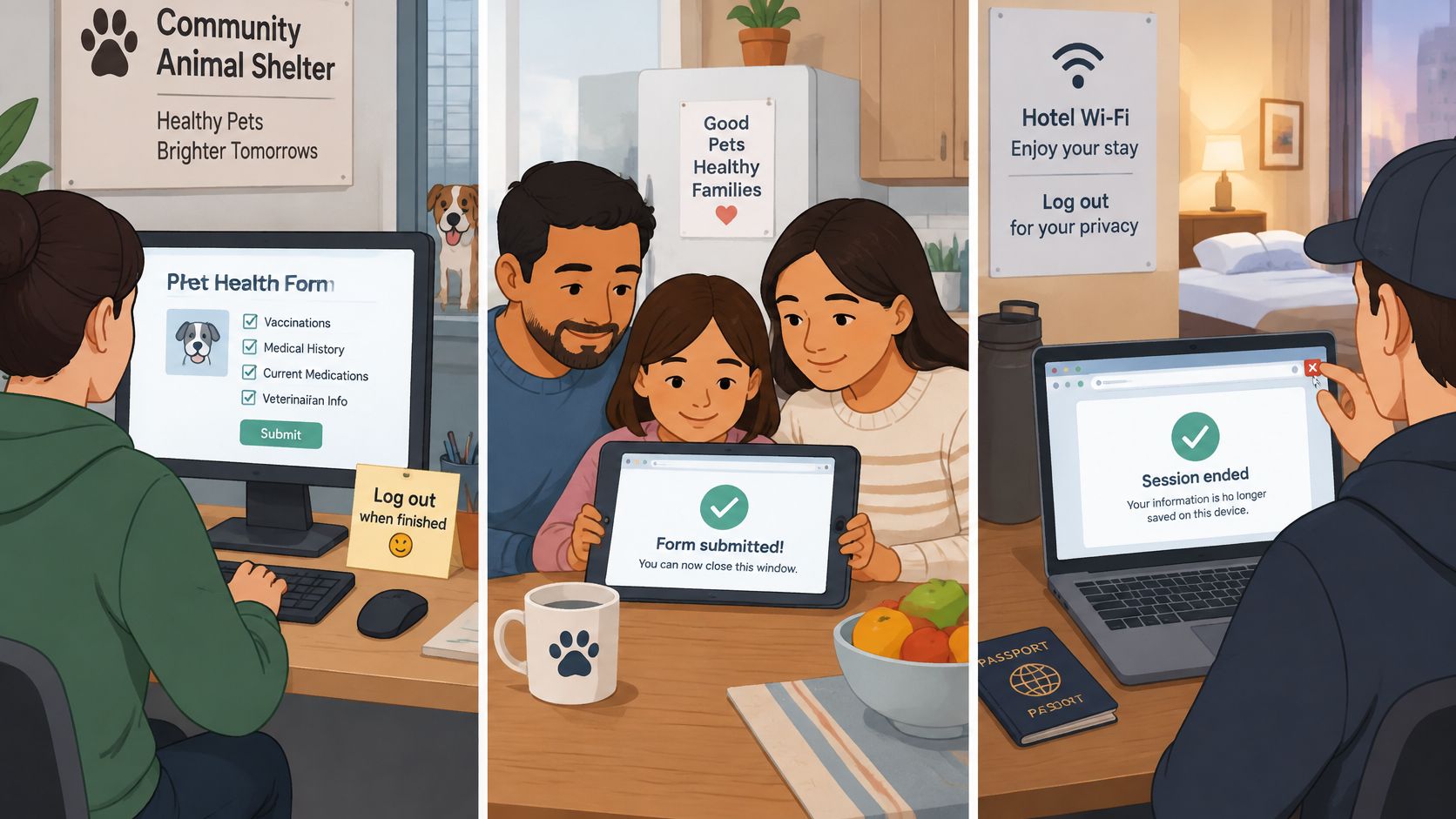
A shelter desk, a family tablet, and a hotel laptop all have the same problem. Someone else will sit down next. The job is how you leave the session, not which menu deletes cookies.
Use a separate browser profile, or a private window, for the sensitive task. Sign out of the account before you close it. A full site-data wipe can drop a saved language, a consent choice, and a half-typed workflow. That hurts when a travel date is close and the form has to be rebuilt from scratch. Copy the key details into the clinic's own notes before any clear. Do not save the password on a device other people use.
Why the advice has to be dated
Usercentrics notes that Safari and Firefox restrict or block third-party cookies by default, while Chrome kept user-managed third-party cookie controls after Google reversed its planned phaseout in 2025. A tip written as if every browser matches can make someone clear more than the task needs. On Chrome, clearing first-party cookies can affect the login and the preferences, while other tracking paths may remain. On Safari or Firefox, the same action may add little, because third-party tracking is already substantially restricted. Deleting all site data can also force a repeated setup of language, consent, and workflow choices. Sort the action by browser and by goal, whether that is one website, one login, a consent reset, or less tracking.
The clinic machine
A vet tech helping a client on the shared clinic computer should end the client's login and leave the clinic's bookmarks alone. Do not use All time on a profile the whole team shares. The next person should see a fresh sign-in, with no password offered to save.
Browser memory is a poor shelf for a travel packet. Keep certificates and health papers in the clinic's document flow, including travel document storage, so a cleared cookie does not take the packet with it.
Before you walk away, check three things. The account is signed out. The browser did not offer to save the password, or you declined. The next person sees a fresh sign-in screen.
Pick the Smallest Cookie Clear
Match the situation to the smallest action that still does the job.
One broken site: Remove that site's data, reload in a fresh tab, and retry the failed task.
A shared computer: Sign out, skip saving the password, and use a private window or a separate profile.
A wish for fewer ads: Use the browser's third-party or auto-clear control instead of wiping every login.
All time is the loud option. It helps when trouble is everywhere. It is costly when a form, a language, or a consent choice still matters. For a clinic helping pet owners with international health papers, the browser tab is a poor place to keep the packet. We keep that certificate workflow outside the tab, so a reset does not erase the case. Our browser extension helps prepare and enter information into other platforms, and it only runs when you actively start it. You can read how that handoff works on the privacy extension page.
Choose the row that matches the device. Clear only cookies and site data for the goal you just named. Confirm the site asks for sign-in again. Stop once that check passes. Clearing a second browser for good measure only creates more sign-ins.
Passpaw helps veterinary teams and pet owners manage international health certificates outside the browser tab, so a cookie clear does not take a travel packet with it. The workflow stays with the case, including document checks and client updates, instead of living in one shared login. Visit Passpaw when the next pet travel file should survive a browser reset.

More articles
From regulatory changes to best practices for veterinarians and pet owners, our resources keep you ahead of the curve.