Are you a team member in a veterinary practice?
Are you a pet parent planning a trip with your furry pal?
My Vet Login: A Practical Access Guide for Pet Owners
You're standing outside the clinic with a carrier in one hand, a dog leash in the other, and a phone that refuses to accept your password. You need a vaccination record, an appointment confirmation, or a refill request, but the my vet login is blocking the whole visit before it starts.
That frustration usually isn't caused by one forgotten password. The clinic's patient record, your registered email, the portal provider, and the clinic's identity system all need to agree. When one detail drifts out of sync, a simple sign-in can turn into repeated resets and calls to reception.
Why a Smooth My Vet Login Matters
A pet portal is more than a digital front desk. Once you're signed in, you may be able to view your pet's medical history, lab results, vaccination records, appointment details, prescription refills, and messages from the clinic team. Those tools help you prepare for a visit and give the veterinary staff better information before you arrive.
Consider a common morning scramble. Your cat needs a health record for boarding, your dog has an appointment later, and the clinic phone line is busy. A working portal lets you find the document yourself instead of asking reception to stop checking in clients and search the practice system for you.
Practical rule: Treat portal access as the first step in the appointment workflow, not as an optional extra.
A failed login creates small delays that spread quickly. You might miss an available appointment slot, send the same request through several channels, or arrive without details the veterinarian expected you to provide. Clinic staff then spend time matching your request to the right client record instead of helping patients in the building.
The problem often sits between accounts rather than inside the password field. A family member may use a different email from the one recorded at the clinic. A clinic may migrate to a new portal and leave older bookmarks in circulation. A staff member may activate single sign-on without explaining that a separate app password no longer works.
Clear onboarding prevents much of this confusion. Clinics can use client onboarding best practices to confirm the owner's identity, pet details, contact email, and preferred communication route before the first portal invitation goes out. Owners, meanwhile, should know which email belongs to the account and where the official login page lives.
The best outcome is simple. You sign in before leaving home, find the record you need, and arrive ready for care. The next steps focus on making that routine reliable.
Finding the Right Login Page and Signing In
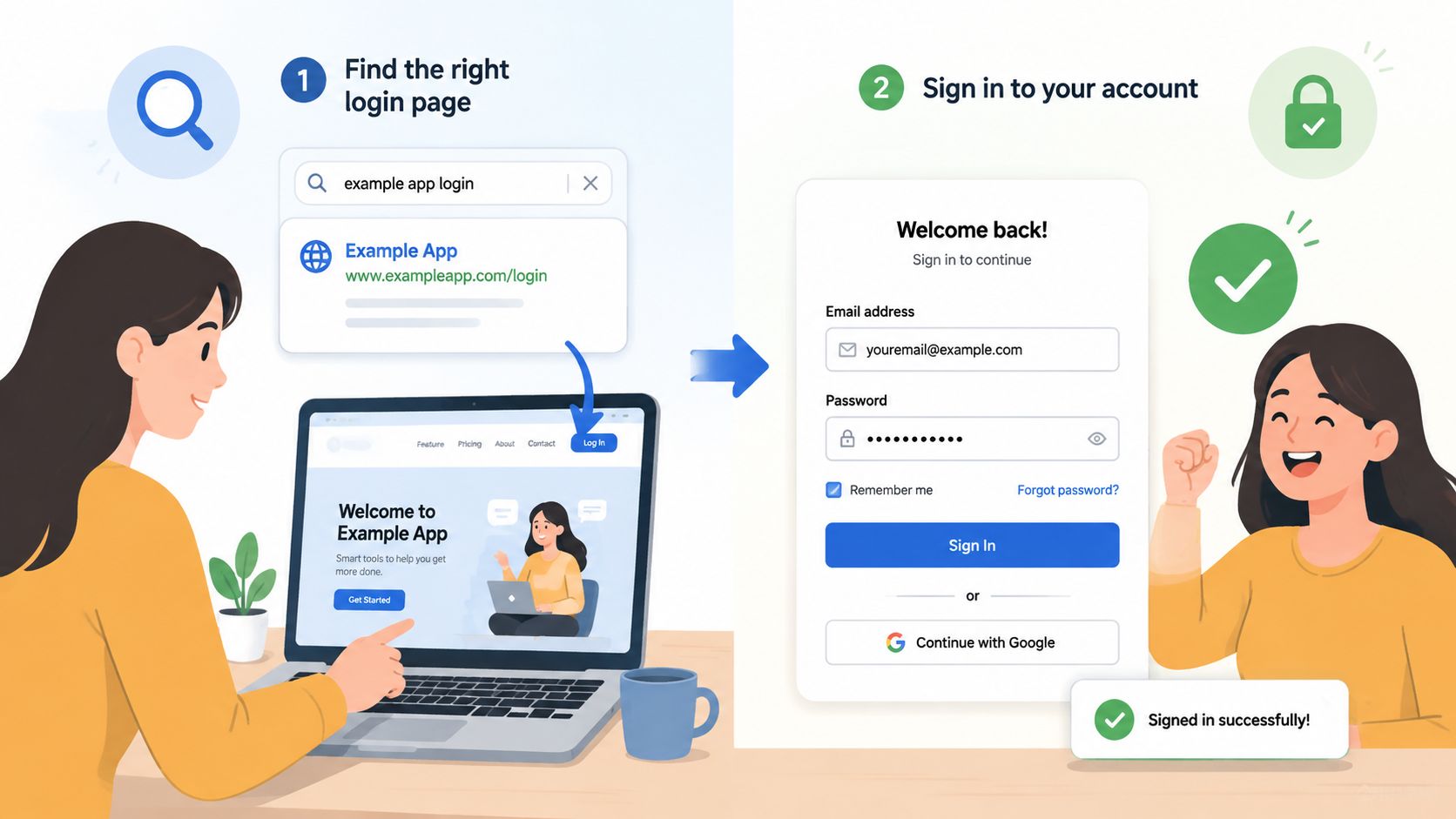
Start with the clinic, not a search engine. Open the veterinary practice's official website by typing its known address or using a saved bookmark. Look for a button labeled Patient Portal, Pet Portal, Client Login, or My Vet.
Many clinics use a separate portal provider, so the login page may not sit on the clinic's own domain. That's normal, but check the page before entering credentials. The clinic name, logo, and contact details should match the practice you use.
Some practices send a welcome email with a direct portal link and temporary password after registration. Search your inbox for the clinic name, “portal,” “account,” or “welcome,” then check spam, Junk, and Promotions folders. Don't use a link from an unexpected message if the sender or destination looks wrong. Call the clinic using the phone number on its official website if you're unsure.
What the sign-in form means
Expect some combination of these fields:
Registered email: Enter the address connected to your clinic record. This may not be the email used for a recent appointment request.
Password: Type it carefully, especially if your browser has filled an older password.
Clinic code or practice ID: Some systems use a short code to connect you to the right practice. The clinic usually provides it in the welcome message.
Remember Me: Use this only on a private device you control.
Forgot Password: Select this when the password fails rather than guessing repeatedly.
After a successful sign-in, bookmark the page. That small habit prevents mistyped searches and helps you avoid unofficial pages. If your clinic supports a wider automated customer support portal, you may also find guided answers for routine access questions there.
For practices building a connected owner experience, Passpaw features show how a pet-focused account can support document access and client communication alongside other workflows.
Resetting Your Password and Verifying Your Email
The password reset process usually works without a phone call, but only if you use the exact email attached to the clinic record.
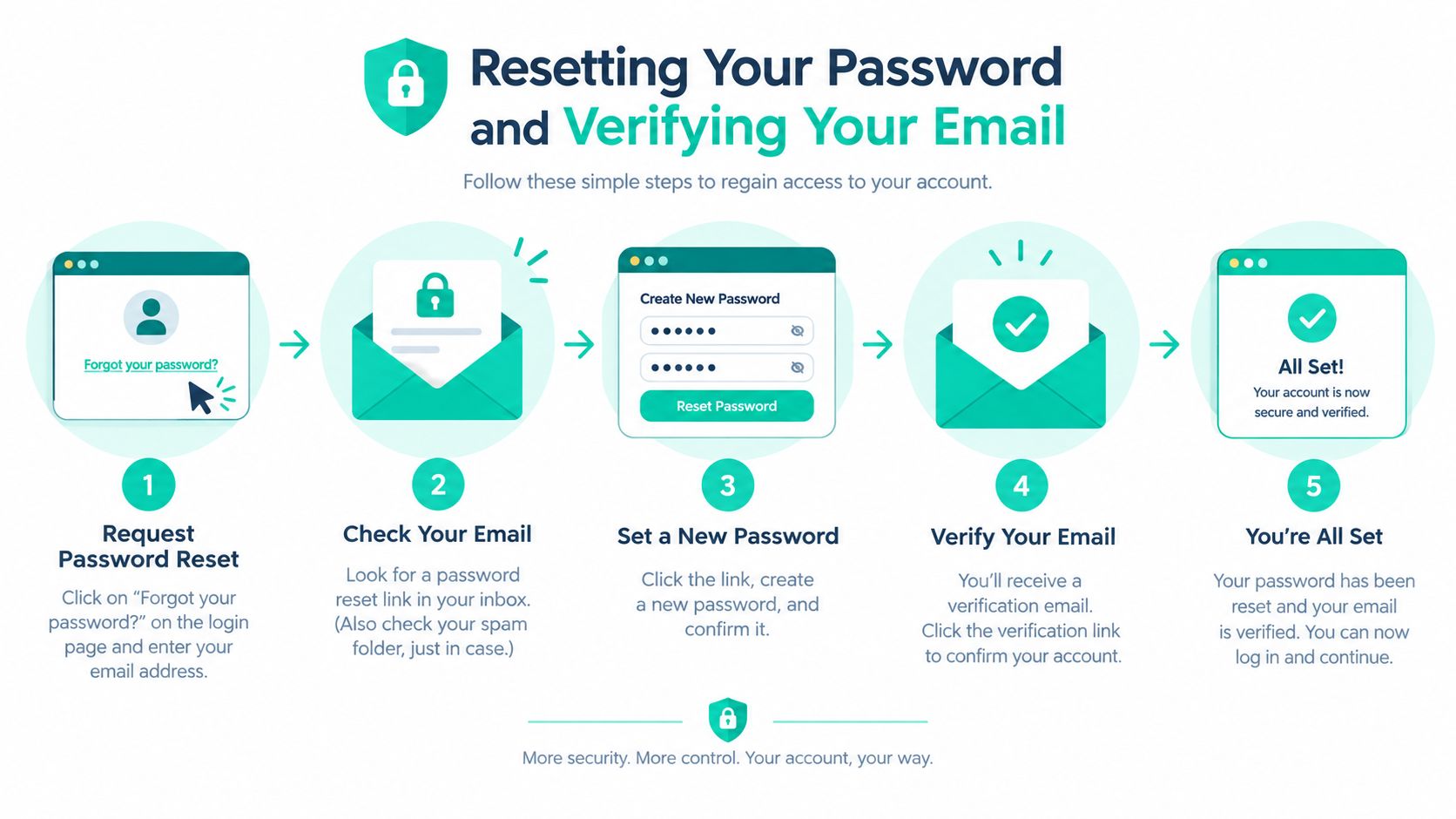
Select Forgot Password or Reset Link below the password field. Enter the registration email manually instead of trusting autofill. Check for a missing character, an old address, a spouse's email, and autocorrect changes before submitting the request.
Next, check your inbox and the Spam, Junk, and Promotions folders. Reset messages may arrive quickly, but delivery can be delayed by filtering or an outdated address. If the email never arrives, sending the request again won't solve an identity mismatch.
Follow the reset message carefully
Open the newest reset email and use its link promptly. Many portals make reset links valid for only 15 to 60 minutes, so an older message may no longer work. If you receive several messages, use the most recent one and ignore earlier links.
Choose a password that follows the clinic's stated rules. Those rules often ask for 8 to 12 characters, with a combination of letters, numbers, and a symbol. Don't reuse a password from email, banking, or another clinic account. A password manager can create and store a different password without making you memorize another string.
Check the identity behind the account
A reset request can appear to succeed while the message goes nowhere. The portal may recognize only the email stored on the client record, not the address listed for a recent appointment or payment.
Common trouble spots include:
A spouse or family caregiver: The clinic record may belong to one person while another person tries to register.
A previous clinic account: A former practice's portal login won't necessarily work with your current veterinarian.
A changed email address: Updating your email with reception may be necessary before the portal recognizes it.
An unverified registration: Look for the original confirmation message and resend it if the portal offers that option.
If you can still access the portal, review the email under account settings and confirm it matches the address you use for resets. If you can't sign in, contact reception and ask them to verify the email on file. The clinic may ask for identifying information, such as photo ID, before changing account ownership or contact details.
Troubleshooting the Most Common Login Problems
Repeated guessing is rarely productive. First identify the symptom, then take the matching action. Auto-filled credentials, browser sessions, account locks, and service outages all look similar from the owner's side, but they need different fixes.
Match the symptom to the cause
Symptom | Likely Cause | Next Step |
|---|---|---|
“Incorrect password” | Browser filled an old password, Caps Lock is on, or pasted text includes hidden spaces | Type the password manually, check capitalization, then use the reset link |
“Too many attempts” | The account has triggered a security lock or rate limit | Stop trying, wait for the stated period, then reset the password if needed |
Email isn't recognized | The portal checks the registered email, not necessarily the appointment contact | Confirm the email with reception |
The page logs you out immediately | Stale cookies, an expired session, private browsing, or long inactivity | Open a normal browser window, clear site data, and sign in again |
The page won't load | Maintenance, an outage, or a local connection problem | Check the clinic's status page or social channels, then try again later |
A code never arrives | Wrong phone number, blocked message, or an unavailable authenticator | Confirm contact details and use the portal's backup method |
A browser can supply an old password even after you've changed it. Delete the saved entry or select the reset option directly. If you paste a password, retype it once to rule out invisible spaces.
Locked accounts need patience. Don't keep testing random passwords while the lock is active. Security systems use rate limiting to slow repeated attempts, and this rate limiting solution explains why repeated retries can extend the problem rather than fix it.
Private browsing can also interfere with sign-in because some portals rely on cookies to maintain a session. Use a normal browser window, update the browser, and try a different trusted device if the page still loops back to the login screen.
A login error is useful evidence. Read the exact message before choosing the next step.
If the clinic confirms an outage, stop resetting your password. Keep a screenshot of the error and note when it appeared. For unresolved account matching or access issues, use the clinic's contact page or its official support route instead of sending credentials by email.
How Single Sign-On and MFA Change the Experience
A “my vet login” problem often starts outside the login page. The clinic record, owner details, identity provider, and message channel must point to the same person. If one changes without the others, the portal may reject a correct password or send the verification code to the wrong place.
Single sign-on, or SSO, lets staff use one organization-managed identity across connected services. Scheduling, records, messaging, and telehealth can share that identity instead of separate passwords. SAML and OIDC are standards that allow systems to confirm identity between services. Users only need to know whether the clinic expects an organization email or a separate portal account.
That choice determines the recovery path. With SSO enabled, users sign in through the organization account. Resetting a password inside the app will not help if the identity provider controls it. Ask the clinic administrator which account owns access before changing credentials.
Multifactor authentication, or MFA, adds a second check after the password. It may use an authenticator app, SMS code, push approval, or passkey. The HHS MFA resource explains how this extra check helps protect healthcare accounts from password theft.
For clinics, the setup needs clear ownership. Document onboarding, temporary access, account removal, and fallback access for caregivers who do not have an organization account. Clinics planning MFA can review this guide to MFA adoption in 2026 and align the rollout with their veterinary practice management software.
For owners, fewer passwords still means keeping contact details current. Confirm which email or phone receives codes, and ask the clinic to correct mismatched records rather than repeatedly retrying the same sign-in.
Simple Habits for Safer and Easier Access
Good access habits prevent more trouble than heroic troubleshooting. Clinics and owners have different jobs, but both can keep the record, identity, and login channel aligned.
For clinic administrators
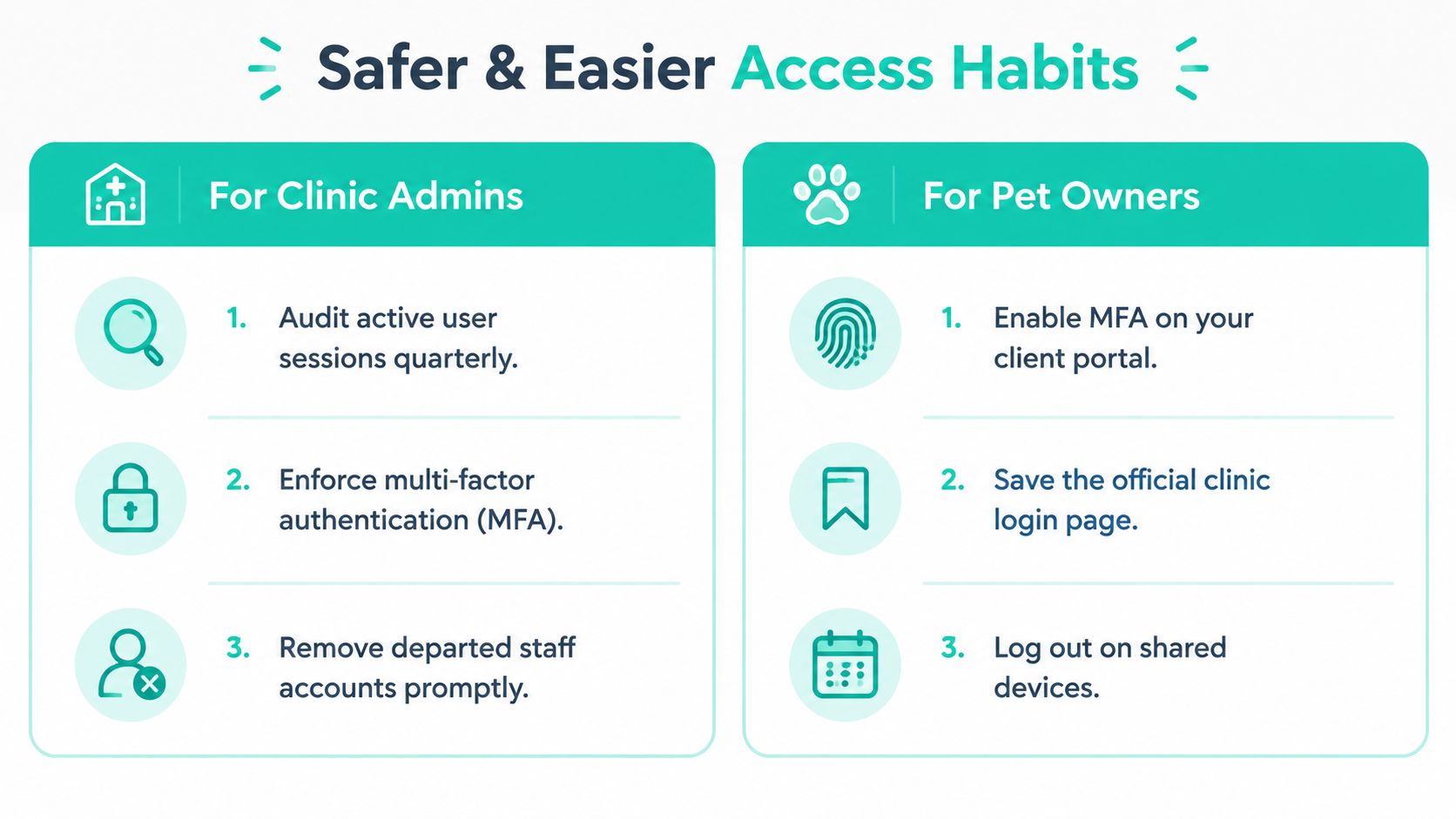
Audit active sessions quarterly: Review who can access the portal and remove sessions that no longer belong to current users.
Enforce MFA: Make the safer sign-in method the default, and explain the enrollment steps during onboarding.
Remove departed staff promptly: A former employee, contractor, or locum shouldn't retain access after leaving.
Document SSO onboarding: Give new hires a written path for account creation, identity-provider sign-in, MFA setup, and temporary access. Don't rely on informal instructions at the reception desk.
Keep client records tidy: When an owner changes email address or shares care with a family member, confirm who owns the portal account and which contact should receive messages.
For pet owners
Save the official clinic login page as a bookmark instead of searching for it before every appointment. Keep the registered email current, and use a password manager so you aren't recycling an old password or depending on browser autofill.
Enable MFA when the portal offers it. Push-based authenticators can be easier to manage than SMS, but use the option your clinic supports consistently. Review connected devices from time to time, log out on shared computers, and report an unexpected sign-in prompt immediately.
A global consumer survey found that 48% of respondents dislike long login or signup forms, 47% dislike password rules, 46% dislike entering sensitive private information, and 43% dislike creating a new ID and password for every service (login experience survey). The same survey found that 51% had abandoned a purchase because of login trouble, a useful reminder that friction changes behavior quickly.
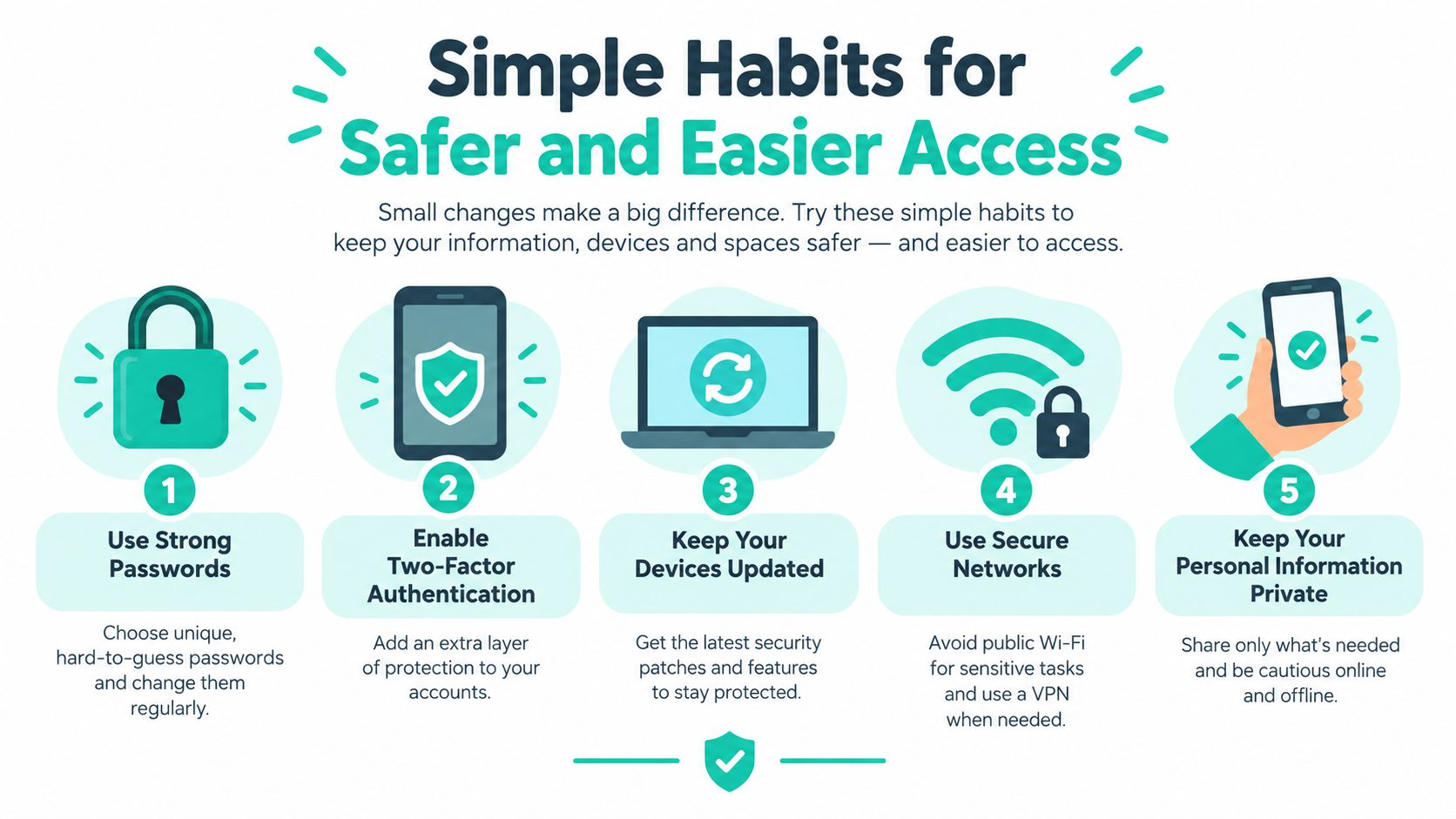
Small routines keep login problems from becoming clinic support tickets. Bookmark the right page, verify the email, use the correct identity provider, and stop guessing when the error points to an outage or account lock.
Passpaw gives pet owners a login for uploading documents, reviewing trip details, and checking progress on international pet health certificate applications, while veterinary teams use their own access to manage those travel documents. Visit Passpaw to see how the platform can keep pet owners and clinic staff aligned throughout the travel workflow.

More articles
From regulatory changes to best practices for veterinarians and pet owners, our resources keep you ahead of the curve.